MCP Server – Send & manage emails, contacts and sending domains
Sidemail MCP server enables you to programmatically send and manage transactional emails, contacts, sending domains, templates, inbound emails, project settings, API logs, and Messenger features – right from MCP agent mode in VS Code, GitHub Copilot, Claude, Codex, and ChatGPT.
What is MCP? Model Context Protocol (MCP) is a new open standard that makes it easier for AI systems to connect with external data and services. MCP acts a bit like an API for AI models – it provides a standard “language” for AI programs to access tools or data from the outside world. Learn more in our explanation article.
MCP server features
- Manage sending domains
- Review and update project settings
- Test sending transactional emails
- Manage contacts and groups
- Create, update, and delete Messenger drafts
- Create, update, and query templates
- Manage inbound routes and inspect received emails
- Query sent emails, contacts, templates, API request logs, and log stats
- Validate email addresses, with optional deep SMTP validation
Prerequisites
- Sidemail account
- Sidemail API key, only for clients that cannot use Sidemail OAuth or the local NPM setup
- Node.js v20 or newer, only for the local NPM package setup
Hosted HTTP setup
Add the hosted Streamable HTTP MCP server when your client supports remote MCP servers:
https://api.sidemail.io/mcpSupported clients will detect OAuth and open Sidemail in the browser. Sign in, choose the project the agent may access, and approve the connection. Your API key is never shared with the client.
Codex setup
Add Sidemail to your user-level MCP configuration:
codex mcp add sidemail --url https://api.sidemail.io/mcp
codex mcp login sidemail
Complete the browser sign-in, then run codex mcp list to verify the connection.
Claude Code setup
Add Sidemail to your user-level MCP configuration:
claude mcp add --transport http sidemail --scope user https://api.sidemail.io/mcpOpen /mcp in Claude Code and complete the browser sign-in.
VS Code setup
Add Sidemail to your user-level MCP configuration:
code --add-mcp '{"name":"sidemail","type":"http","url":"https://api.sidemail.io/mcp"}'Complete the browser sign-in when VS Code connects.
GitHub Copilot CLI setup
Add Sidemail to your user-level MCP configuration:
copilot mcp add --transport http sidemail https://api.sidemail.io/mcpComplete the browser sign-in, then run copilot mcp get sidemail to verify the connection.
Claude web and Claude Desktop setup
- Open Customize → Connectors and add a custom connector named Sidemail.
- Enter
https://api.sidemail.io/mcpas the server URL. - Under OAuth client, choose Use Claude’s published identity.
- Sign in to Sidemail, choose a project, and allow access.
Cursor setup (API key)
Cursor does not currently work with Sidemail OAuth. Create a project API key, set it as the SIDEMAIL_API_KEY environment variable, and add Sidemail to your user-level ~/.cursor/mcp.json file:
{
	"mcpServers": {
		"sidemail": {
			"url": "https://api.sidemail.io/mcp",
			"headers": {
				"Authorization": "Bearer ${env:SIDEMAIL_API_KEY}"
			}
		}
	}
}
Restart Cursor after setting the environment variable.
API key fallback (VS Code format)
Clients that cannot use Sidemail OAuth can send a Sidemail API key in the Authorization header as a Bearer token. The example below uses VS Code's user configuration format.
{
	"servers": {
		"sidemail": {
			"type": "http",
			"url": "https://api.sidemail.io/mcp",
			"headers": {
				"Authorization": "Bearer ${input:sidemail-key}"
			}
		}
	},
	"inputs": [
		{
			"type": "promptString",
			"id": "sidemail-key",
			"description": "Sidemail API Key",
			"password": true
		}
	]
}
Local NPM setup
Use the local NPM package when your client expects a stdio MCP server.
Microsoft VS Code setup (assisted)
- Open the Command Palette (
Ctrl/Cmd + Shift + P). - Type “MCP: Add Server…” and select it.
- Select "NPM Package".
- Enter
@sidemail/mcpand confirm it. - Confirm the installation.
- Enter your Sidemail API key and confirm it.
Microsoft VS Code local setup (manual)
Alternatively, you can install it manually by modifying the mcp.json configuration file.
- Open the Command Palette (
Ctrl/Cmd + Shift + P). - Type “MCP: Open User Configuration” and select it.
- Add the configuration below and save changes.
{
	"servers": {
		"sidemail-mcp": {
			"type": "stdio",
			"command": "npx",
			"args": ["-y", "@sidemail/mcp"],
			"env": {
				"SIDEMAIL_API_KEY": "${input:sidemail-key}"
			}
		}
	},
	"inputs": [
		{
			"type": "promptString",
			"id": "sidemail-key",
			"description": "Sidemail API Key",
			"password": true
		}
	]
}
Claude Desktop local setup
Edit (or create) the config file:
- macOS:
~/Library/Application Support/Claude/claude_desktop_config.json - Windows:
%APPDATA%\Claude\claude_desktop_config.json - Linux:
~/.config/Claude/claude_desktop_config.json
{
	"mcpServers": {
		"sidemail": {
			"command": "npx",
			"args": ["-y", "@sidemail/mcp"],
			"env": { "SIDEMAIL_API_KEY": "your-key" }
		}
	}
}
CLI Usage
npx @sidemail/mcpFor local HTTP testing:
MCP_TRANSPORT=http npx @sidemail/mcpMCP Server Tools
Domains
- list-domains: List all sending domains
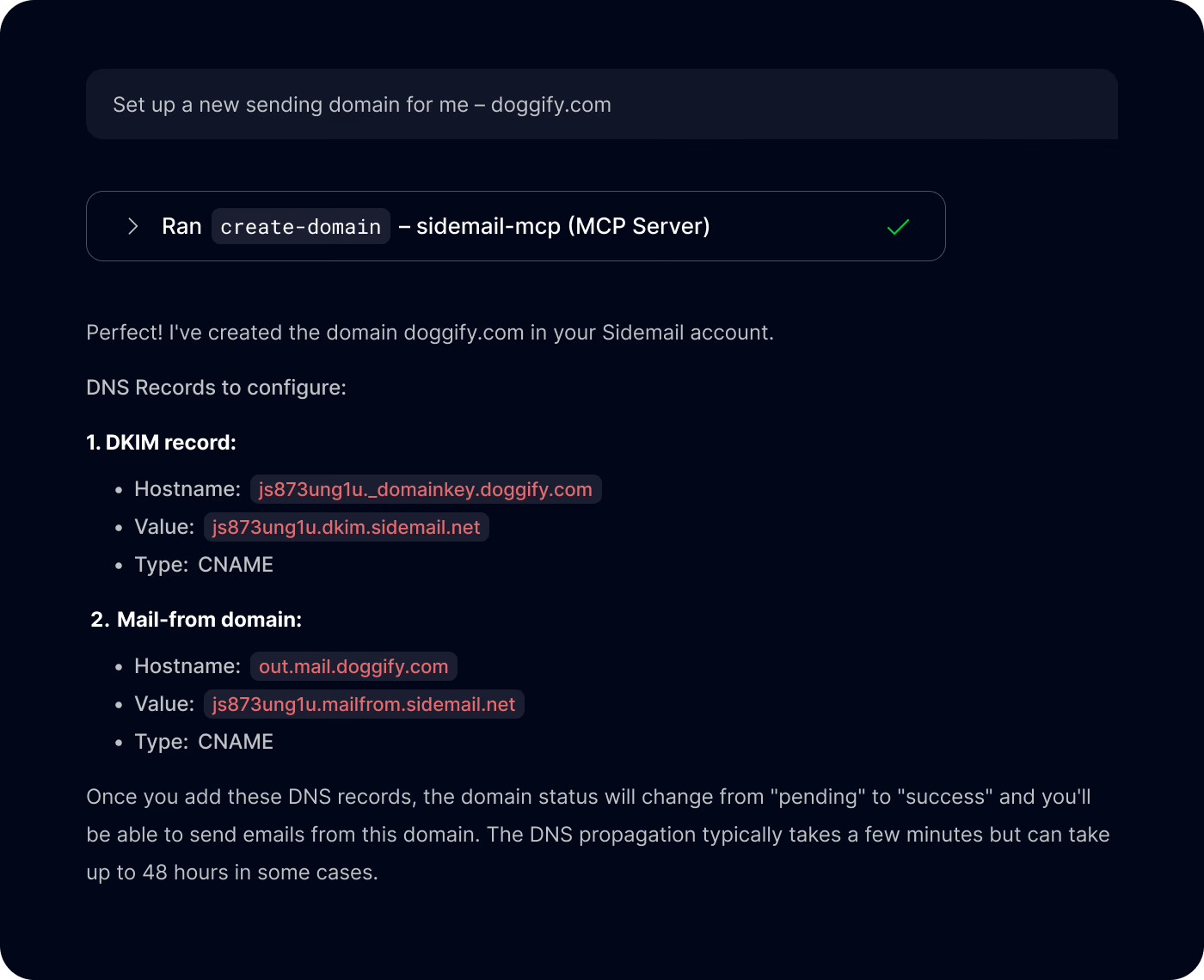
- create-domain: Add a new sending domain
- check-domain: Check domain verification and DNS status
- setup-domain-mail-from: Set up custom Mail-From DNS records
- delete-domain: Remove a sending domain
Example – Adding a new sending domain:
Projects
- get-project: Get the current project
- create-linked-project: Create a linked project (API key connections only)
- update-project: Update project settings and email design
- delete-linked-project: Delete the current linked project
Messenger
- list-messenger-drafts: List Messenger drafts
- get-messenger-draft: Get Messenger draft by ID
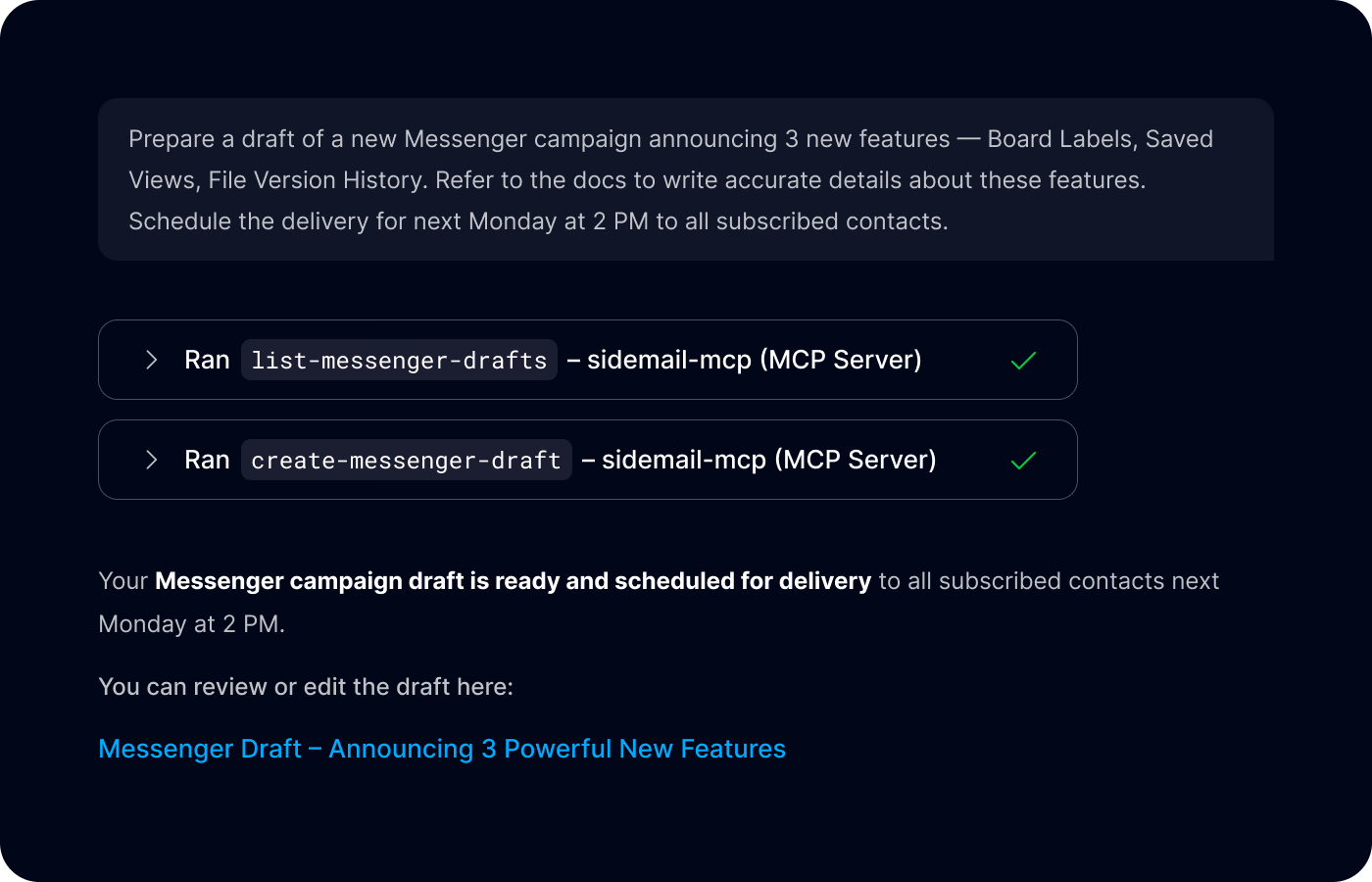
- create-messenger-draft: Create a Messenger draft
- update-messenger-draft: Update a Messenger draft
- delete-messenger-draft: Delete a Messenger draft
Example – Writing a product update email:
Groups
- list-groups: List all contact groups
- create-group: Create a new contact group
- update-group: Update a contact group
- delete-group: Delete a contact group
Contacts
- create-or-update-contact: Create or update a contact
- list-contacts: List contacts with pagination
- query-contacts: Query contacts with filters
- clean-contacts-batch: Validate and clean contacts in a group
- find-contact: Find a contact by email
- delete-contact: Delete a contact
Emails
- send-email: Send a transactional email
- query-emails: Query sent emails
- get-email: Retrieve an email by ID
- delete-email: Delete a scheduled email
Email validation
- validate-email: Validate an email address. Use
isDeep: truefor SMTP mailbox validation; deep checks can consume validation credits.
Templates
For template content element structure and examples, see the Templates API content nodes documentation. Agents can also inspect list-template-gallery or get-template output before creating complex template updates.
- list-templates: List email templates
- get-template: Retrieve a template by ID
- create-template: Create an email template
- update-template: Update an email template
- list-template-gallery: List gallery templates
- list-template-fonts: List supported template fonts
Inbound emails
- list-inbound-routes: List inbound routes
- create-inbound-route: Create an inbound route
- update-inbound-route: Update an inbound route
- delete-inbound-route: Delete an inbound route
- list-received-emails: List received inbound emails
- get-received-email: Retrieve a received inbound email by ID
API logs
- query-api-request-logs: Query recent API request logs
- get-api-request-log-stats: Get API request log statistics
More resources
- Github repository:
sidemail/sidemail-mcp-server - NPM package:
@sidemail/mcp - Features overview