Connect Sidemail with Flozic
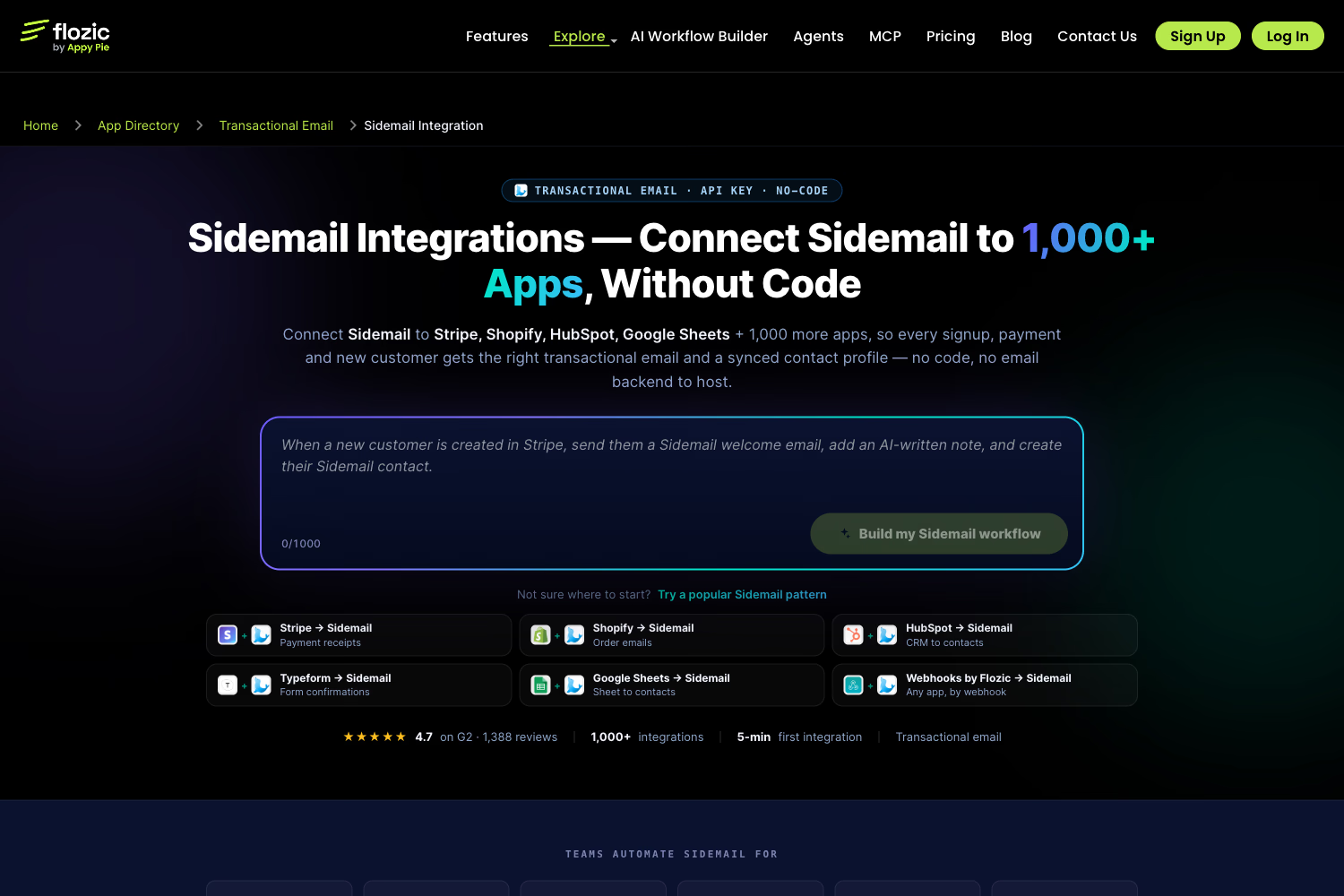
Flozic is a no‑code workflow builder that can connect Sidemail with other apps in your stack. You can use it when you want a no‑code solution to send an email through Sidemail or update a Sidemail contact based on an event from another tool, such as a new Stripe customer, Shopify order, Typeform submission, HubSpot contact, or Google Sheets row.
Before you start
You'll need:
- Sidemail account – if you don't have account yet, you can sign up here.
- Sidemail API key – find it in your project's API section.
- Verified sending domain – set it up in your project's settings > Sending domains section. You can also read more in Domain verification and DKIM docs.
- Flozic account with the source app connected
Flozic is a third‑party service. Only connect a Sidemail API key to a Flozic workspace you trust. If you stop using the integration, remove the connection in Flozic and rotate the API key in Sidemail.
1. Create or choose your Sidemail API key
In your Sidemail project, open the API section and copy an API key for the project you want Flozic to use.
Keep the key private. Flozic will use it to call Sidemail API endpoints on behalf of your workflow.
2. Connect Sidemail in Flozic
In Flozic, create or edit a workflow and add Sidemail as an app.
Once connected, Flozic will show the Sidemail triggers and actions available in its builder.
3. Choose what starts the workflow
Most workflows start with an event in another app.
For example:
- New Stripe customer
- New Shopify order
- Typeform submission
- New or updated CRM contact
- New row in Google Sheets
You can then add a Sidemail action later in the workflow.
If your workflow starts from a Sidemail event, choose the Sidemail trigger that Flozic lists in the builder. For direct server‑to‑server event handling, you can also use Sidemail webhooks instead of a no‑code workflow.
4. Add the Sidemail action
Choose the Sidemail action that matches what the workflow should do.
Common examples:
- Send a transactional email when an event occurs (for example, when a user signs up, makes a purchase, or submits a form)
- Create or update a contact profile
- Pass contact data from another app into Sidemail
When sending an email, map the fields Flozic gives you into the Sidemail email fields:
| Sidemail field | What to map |
|---|---|
toAddress | The recipient's email address |
fromAddress | Your verified sending address in Sidemail |
fromName | Your product or company name |
templateName or templateId | The Sidemail template to send |
templateProps | Dynamic values used inside the template |
For contacts, map at least emailAddress. You can also map your own identifier and customProps fields. Learn more in Quickstart to contact profiles.
5. Test the workflow
Before enabling the workflow for real users:
- Send the first test to your own email address
- Check that the sender address is verified in Sidemail
- Check that all required template props are mapped
- Review the email in Sidemail's email history
- Review the workflow run log in Flozic
More resources
You can also learn more about the Flozic + Sidemail integration at the Flozic product page.